Reorder, delete and merge PDF pages on your Android phone
PdfPages shows every page of a PDF as a tile you can drag, delete, rotate and add to. Merge several PDFs into one, or pull pages out into a new file. Your original is never changed, and your documents never leave your phone.

Free on Google Play for Android 7.0 or newer. The app shows ads; a one-time purchase removes them. No subscription.
What you get
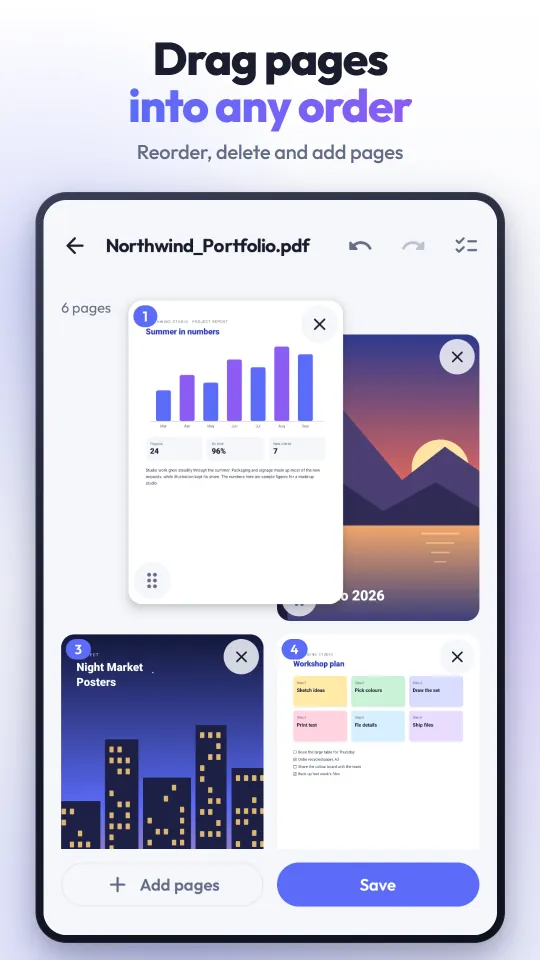
- Drag pages into orderGrab the handle in a page's corner and drop it where it belongs; the grid scrolls by itself at the edge.
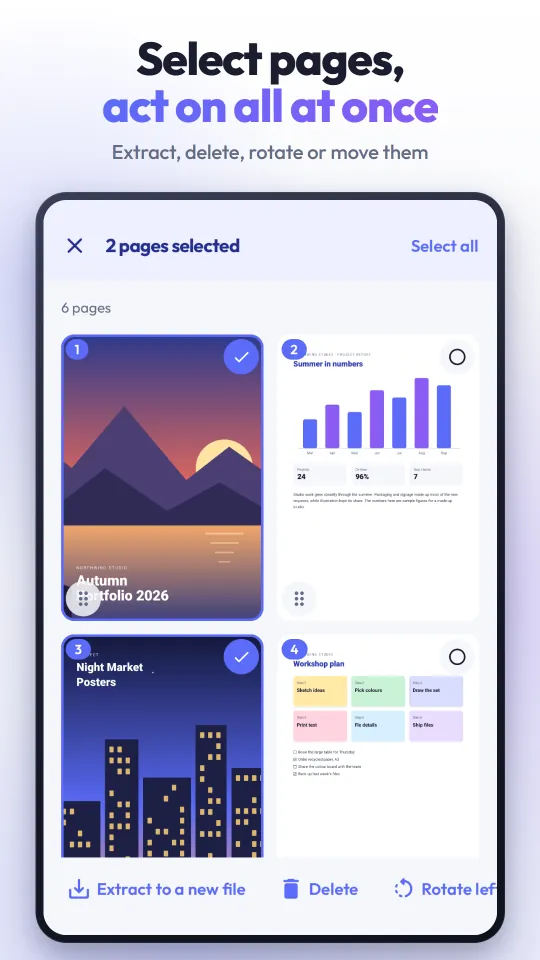
- Delete and rotateRemove one page with its X, or select several and delete or rotate them together.
- Add pagesAdd every page of another PDF, a photo from your gallery or a blank A4 page.
- Merge and extractOpen several PDFs as one document, or save just the pages you select as a new PDF.
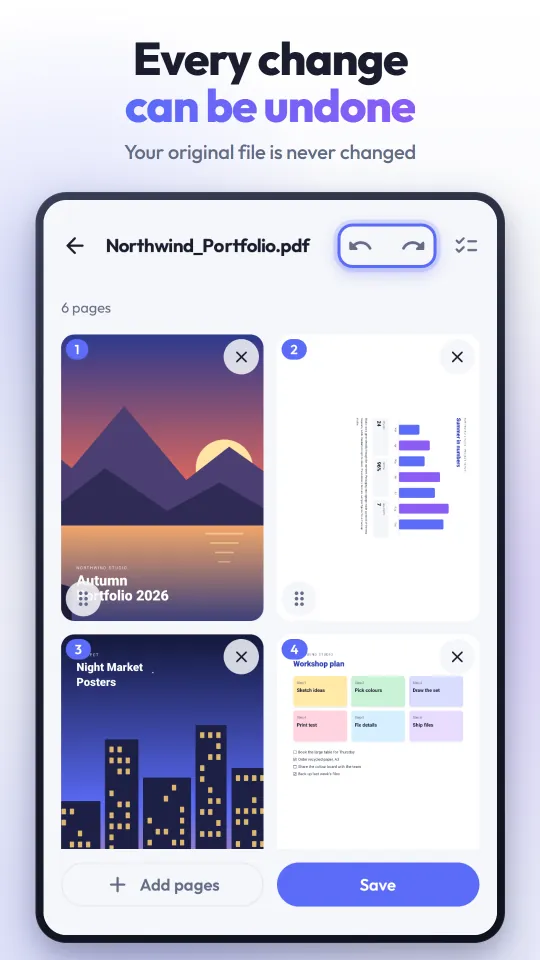
- Your original stays untouchedSaving always writes a new PDF, and until then every change can be undone and redone.
- Pages stay real pagesPages are not turned into pictures: text stays selectable, lines stay sharp and the file does not balloon.
- No watermark, no accountNothing is stamped on your pages. No sign-up, no email: open the app and use it.
- Documents stay on your phonePDFs are opened and rebuilt on the phone and never uploaded. The app asks for no storage permission.
How to reorder, delete and rotate PDF pages
- Open PdfPages, tap Edit a PDF and pick a file. You can also open a PDF with PdfPages from your file manager, or share it to the app.
- Drag a page by the handle in its corner to move it. Tap the X on a page to remove it, or tap the page to see it full screen.
- Press and hold a page to select it, tap more pages or Select all, then choose Delete, Rotate left, Rotate right, To start or To end.
- Changed your mind? Undo and Redo are in the top bar. When it looks right, tap Save: the new PDF goes to Documents/PDF Pages and your original stays as it was.
How to add pages, merge PDFs and extract pages
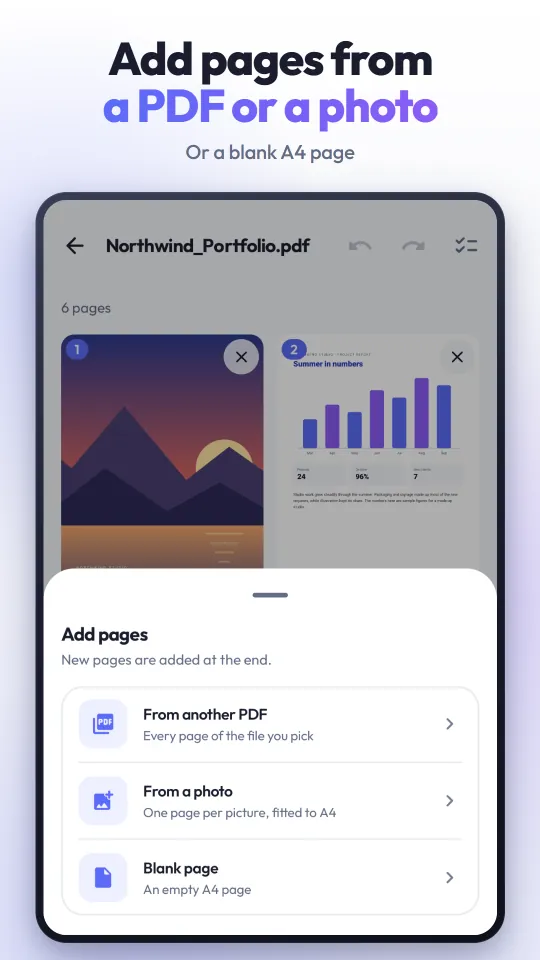
- In the editor, tap Add pages and choose From another PDF, From a photo (one page per picture, fitted to A4) or Blank page. With one page selected, the new pages go right after it; otherwise they go to the end.
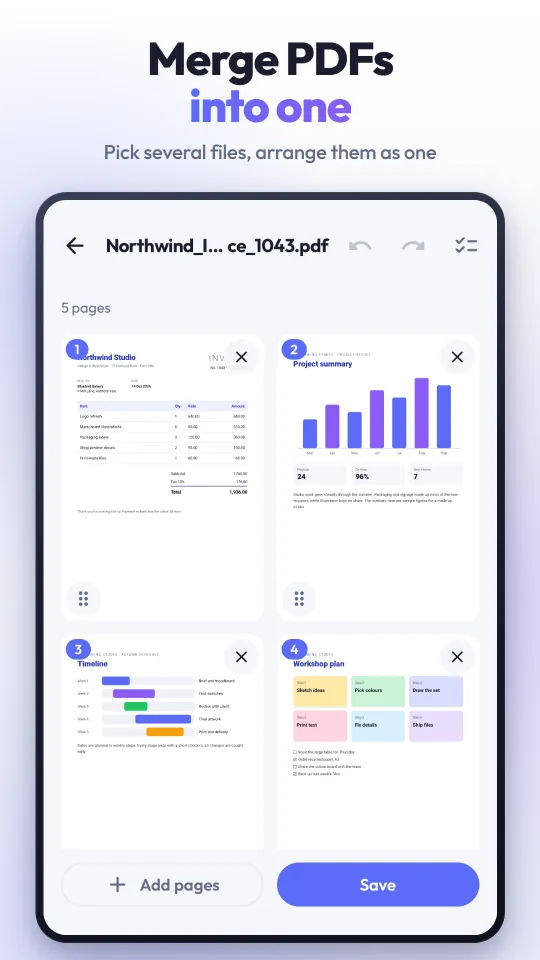
- To merge, tap Merge PDFs on the home screen and pick several files at once. They open as one document; drag the pages into the order you want.
- To pull pages out, select them and tap Extract to a new file. Only those pages are saved as a new PDF; the document you are editing stays as it is.
- Open or share the result straight away, and find every saved file again under History.
Questions people ask
How do I rearrange PDF pages on Android?
Open the PDF in PdfPages and every page appears as a tile. Drag a page by the handle in its corner and drop it where it belongs; the grid scrolls by itself at the edge. To move several pages at once, select them and tap To start or To end, then tap Save.
How do I delete pages from a PDF?
Tap the X on a page to remove it, or press and hold a page, select the others you want gone and tap Delete. Undo brings a page back, and nothing is written until you save a new copy.
How do I merge PDF files on my phone?
Tap Merge PDFs on the home screen and pick several PDFs at once, or share several PDFs to PdfPages from another app. They open as one document that you can rearrange before saving it as a single PDF. Password-protected PDFs cannot be opened.
Can I extract pages from a PDF into a new file?
Yes. Select the pages you need and tap Extract to a new file: only those pages are saved as a new PDF, and the document you are editing stays as it is. There is no split-by-range tool; you choose the pages by tapping them.
Can I add a photo or a blank page to a PDF?
Yes. Tap Add pages and choose From a photo (each picture becomes a page, fitted to A4), Blank page (an empty A4 page) or From another PDF (all of its pages). With one page selected the new pages go right after it; otherwise they go to the end.
Is my original PDF changed? Where is the new file saved?
Your original is never modified: saving always creates a new PDF. On Android 10 and newer it goes to Documents/PDF Pages, an ordinary folder any file manager can open; on Android 9 and older it is kept in the app's own folder, and you reach it with Open, Share or History.
Is PdfPages free?
Yes. The app is free and paid for by ads: a banner at the bottom of the screen and a full-screen ad after you save a document, announced by a short card and played only when you tap Continue. There is no subscription. If you like, watch one ad to use the app with no ads for 1 hour (after saving, or in Settings). An optional one-time purchase in Settings removes every ad for good and is restored from your Google Play account if you reinstall. No feature is held back.
Does it work offline?
Yes. Opening, editing and saving PDFs all happen on your phone and need no internet connection. The connection is used only for ads, the remove-ads purchase, and usage statistics and crash reports, which never contain your files; the app works without them.
Are my PDFs uploaded anywhere? Do I need an account?
No to both. Documents are opened and rebuilt on the phone and never sent to a server. There is no sign-up, and the app asks for no storage permission: you hand it each file through Android's own picker.
Does it add a watermark or make the PDF blurry?
No watermark is ever added. PdfPages keeps the real page structure instead of turning pages into pictures, so text stays selectable and lines stay sharp. In our own testing a 794 kB report came back out at 794 kB.
Which phones does it run on? Is there an iPhone version?
Android 7.0 or newer, on phones and tablets, upright or sideways; the page grid uses the extra width. PdfPages is an Android app only; there is no iPhone or web version.
Which languages is the app in?
The app itself is in English and Turkish. It follows your phone's language, and Settings lets you switch.
PdfPages