Convert photos and JPG to PDF on Android, with no watermark
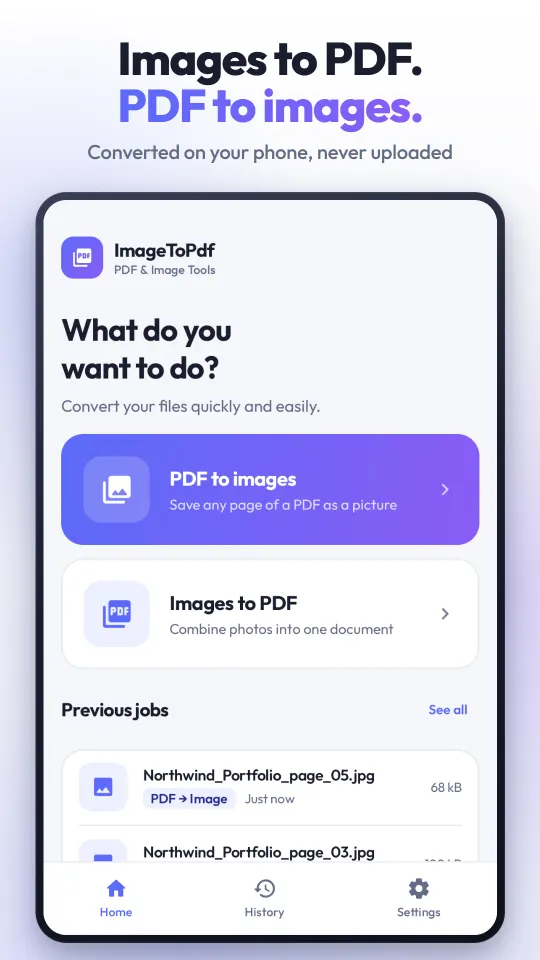
ImageToPdf turns your photos into a real PDF, and saves the pages of a PDF back out as images. Everything happens on your phone: no watermark, no subscription, no account, and nothing is uploaded.

Free on Google Play for Android 7.0 or newer. The app shows ads; a one-time purchase removes them.
What you get
- No watermarkNothing is ever stamped on your pages, and there is no paid tier that removes one.
- No subscriptionOne optional, one-time purchase removes the ads. Every feature is in the free app.
- No accountNo sign-up, no email. Open the app and use it.
- Works offlineConverting needs no internet connection: airplane mode is fine.
- Nothing uploadedPhotos and PDFs are processed on the phone. The app uses Android's Photo Picker and asks for no storage permission.
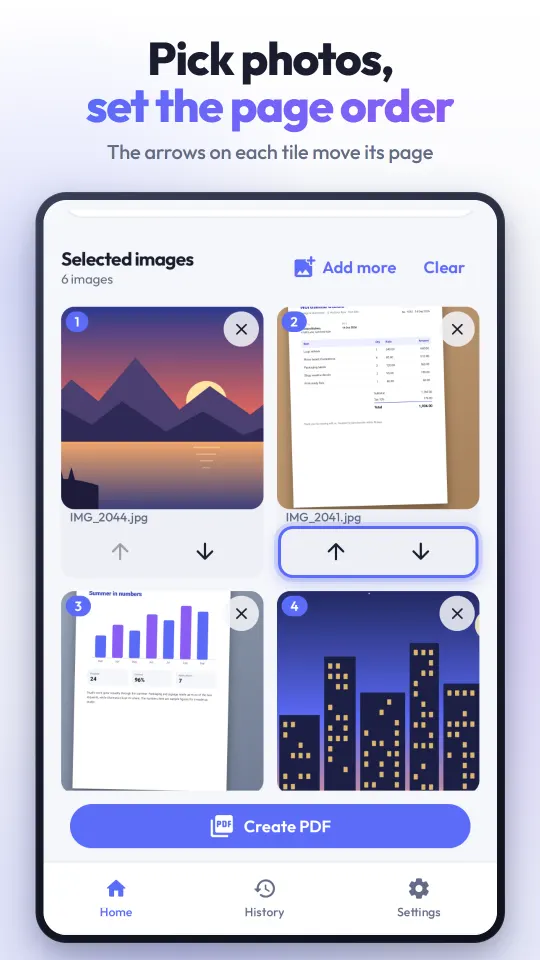
- Up to 100 photosCombine up to 100 JPG, PNG or WebP images into one PDF, in the order you choose.
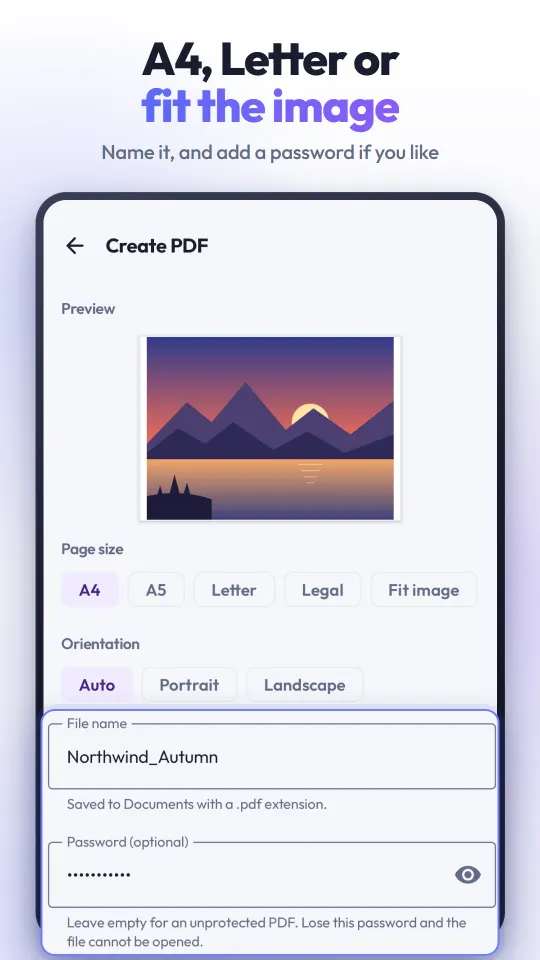
- Password protectionAdd a password if you like; the PDF asks for it when it is opened.
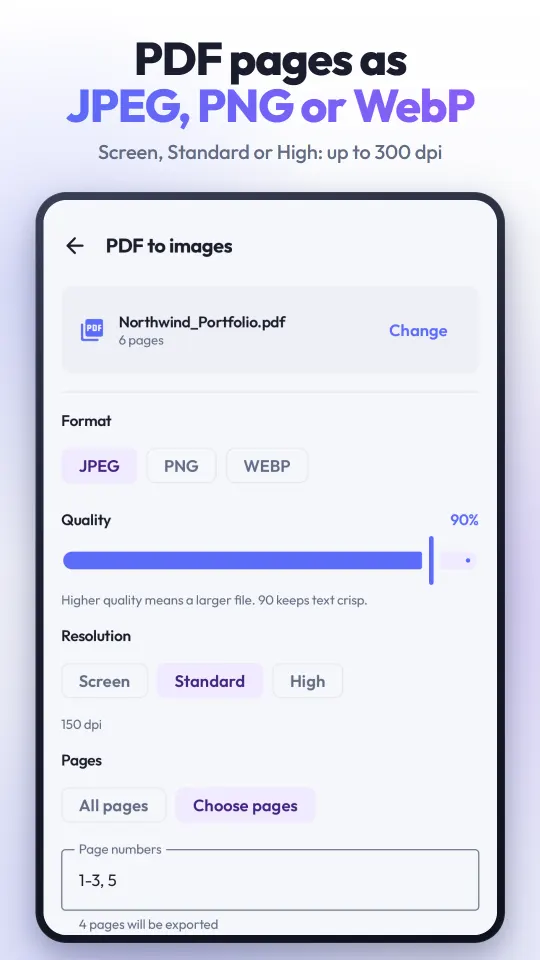
- PDF to images tooSave PDF pages as JPG, PNG or WebP at 96, 150 or 300 dpi.
How to convert photos to PDF
- Open ImageToPdf and tap Images to PDF.
- Pick your photos, up to 100. Use the arrows on each tile to set the page order.
- Choose the page size (A4, A5, Letter, Legal or Fit image), orientation and margin. Name the file and add a password if you like.
- Tap Create PDF. The PDF is saved in Documents/Image to PDF, ready to share.
How to save PDF pages as images
- Tap PDF to images and choose a PDF, or share one into the app from another app.
- Pick JPEG, PNG or WebP, the quality and the resolution.
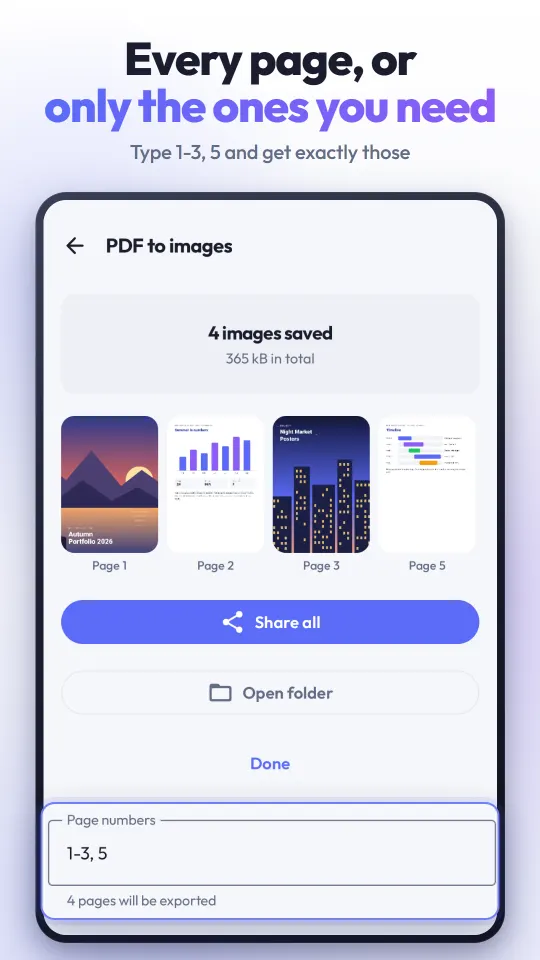
- Export every page, or only the ones you type, like 1-3, 5. Images go to Pictures/Image to PDF.
Questions people ask
How do I convert JPG to PDF on Android without a watermark?
Install ImageToPdf from Google Play, tap Images to PDF, pick your JPG photos, put them in order and tap Create PDF. The app never adds a watermark, on any page, and there is no paid version that removes one, because nothing is stamped on in the first place.
Can I combine several photos into one PDF?
Yes. You can put up to 100 photos into a single PDF, one photo per page. The arrows on each tile change the order before you create the file.
Does it work offline?
Yes. Converting photos to PDF and PDF pages to images runs entirely on your phone, so it works without an internet connection. Ads need a connection to load, but the app works without them.
Are my photos uploaded anywhere?
No. Your photos and PDFs are read and converted on the phone and are never sent to a server. The app opens files through Android's Photo Picker, so it only sees what you hand it and asks for no storage permission.
How do I password-protect a PDF?
On the Create PDF screen, type a password in the optional Password field. The PDF is saved with standard AES-128 encryption, so common PDF readers ask for the password when the file is opened. Keep the password safe: it cannot be recovered.
Is ImageToPdf free?
Yes. The app is free and paid for by ads: a banner on the main screens and one full-screen ad before the result of a finished conversion, announced by a short card and played only when you tap Continue. There is no subscription. If you like, watch one ad to use the app with no ads for 1 hour (on the PDF result or in Settings). An optional one-time purchase in Settings removes the ads for good. No feature, page size or resolution is held back.
Do I need an account or an email?
No. There is no sign-up of any kind.
Which image formats are supported?
JPG (JPEG), PNG and WebP, plus any other image format your Android version can decode. Exported PDF pages can be saved as JPEG, PNG or WebP.
Can I convert a PDF to JPG?
Yes. Use PDF to images to save every page, or a range such as 1-3, 5, as JPEG, PNG or WebP at 96, 150 or 300 dpi. Your PDF is only read, never changed. Password-protected PDFs cannot be opened for this.
Where are my files saved?
PDFs go to Documents and exported images go to Pictures, each in a folder named Image to PDF.
Which phones does it run on? Is there an iPhone version?
Android 7.0 or newer. ImageToPdf is an Android app only; there is no iPhone or web version.
Which languages is the app in?
The app itself is in English and Turkish. It follows your phone's language, and Settings lets you switch.
ImageToPdf